Bulk operations let you select many memories and move or delete them in one go. Useful when you are reorganizing a large bucket or clearing out memories you no longer want.
Entering selection mode
1
Open a bucket
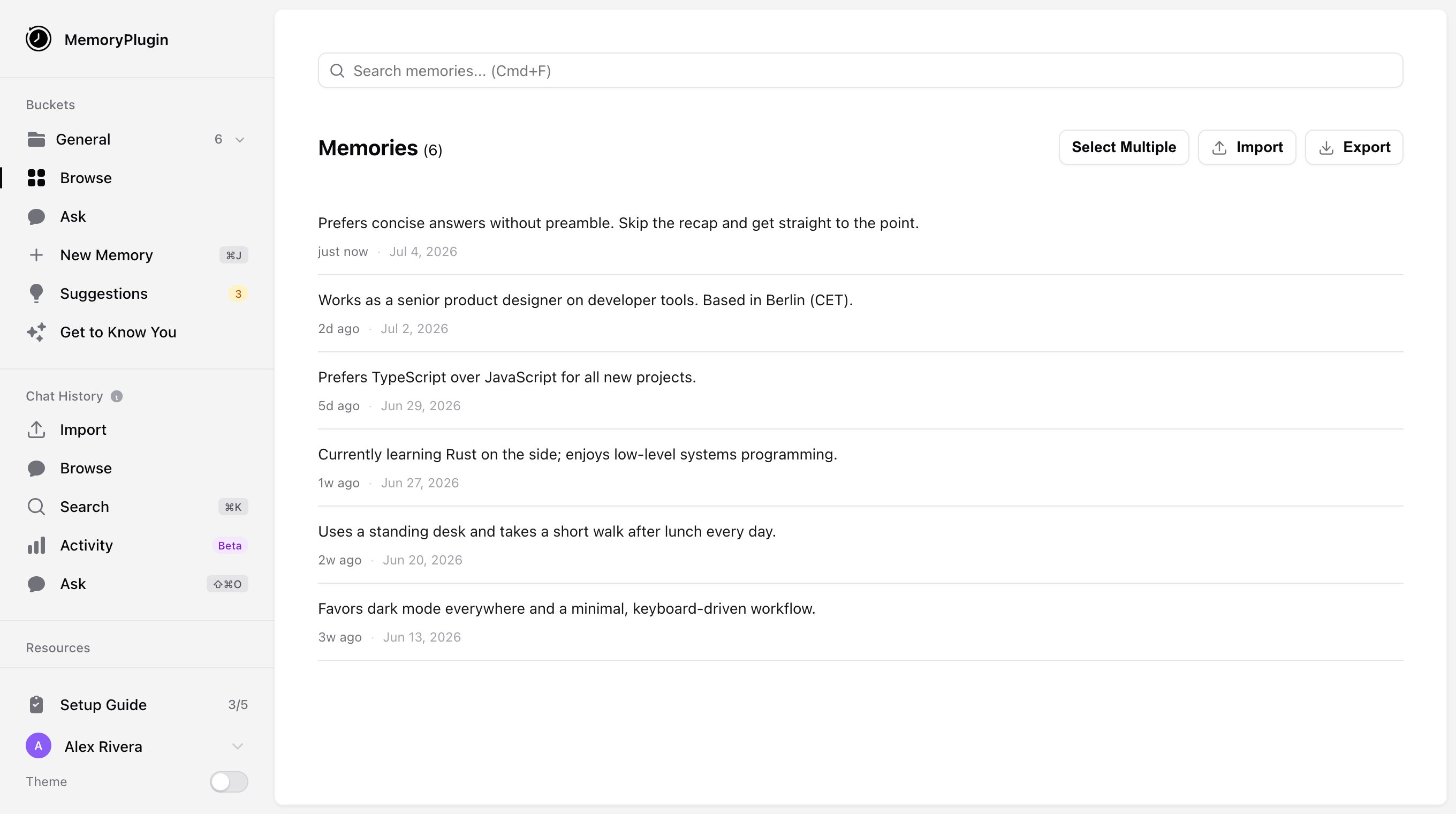
In your dashboard, open the bucket you want to work in. The memory list header reads Memories ().
The memory list header, with the Select Multiple button.
2
Click Select Multiple
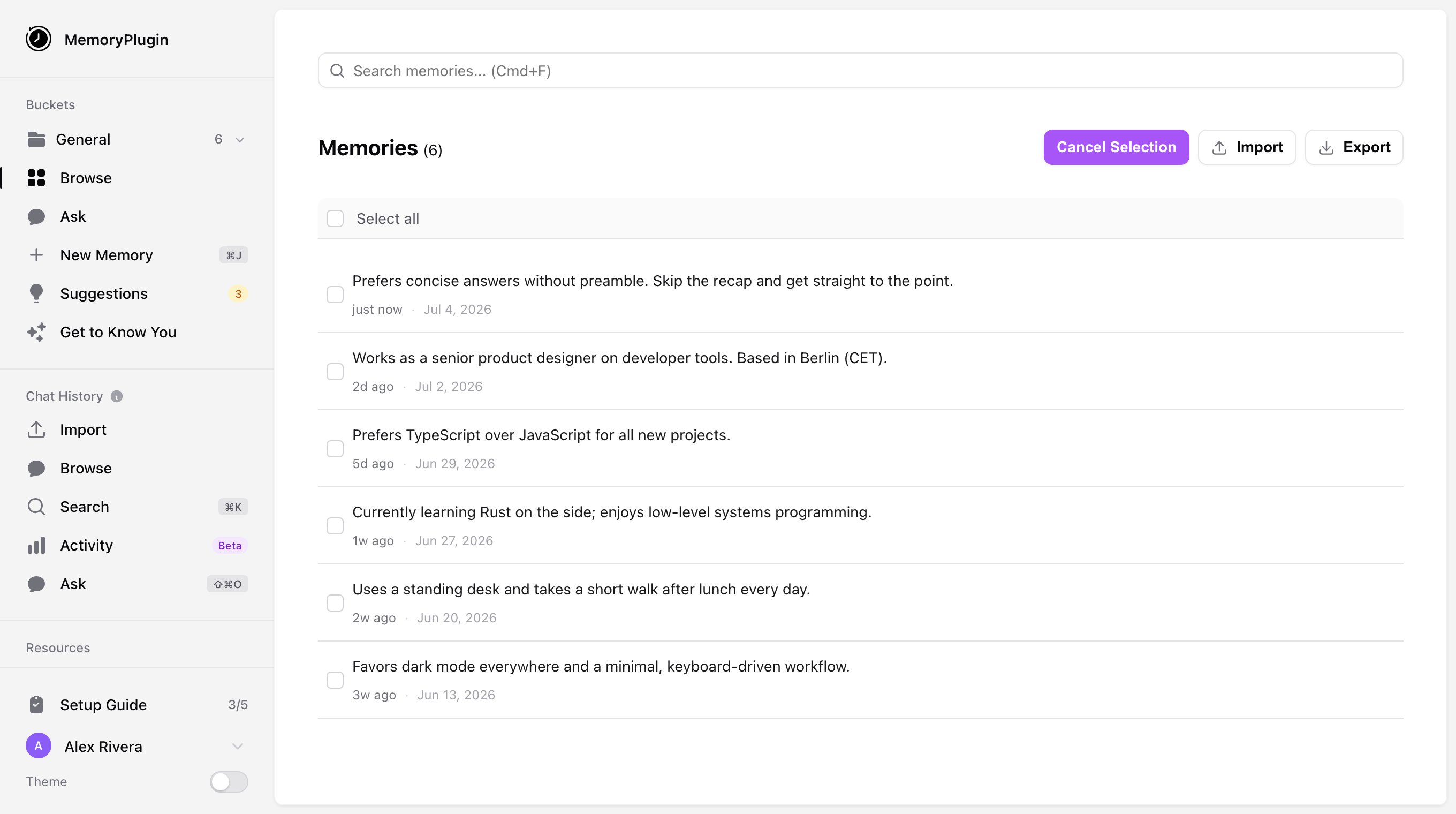
Click Select Multiple in the list header. The button changes to Cancel Selection, and a checkbox appears on each memory.
Selection mode: a checkbox appears on each memory, with a Select all control at the top.
3
Select memories
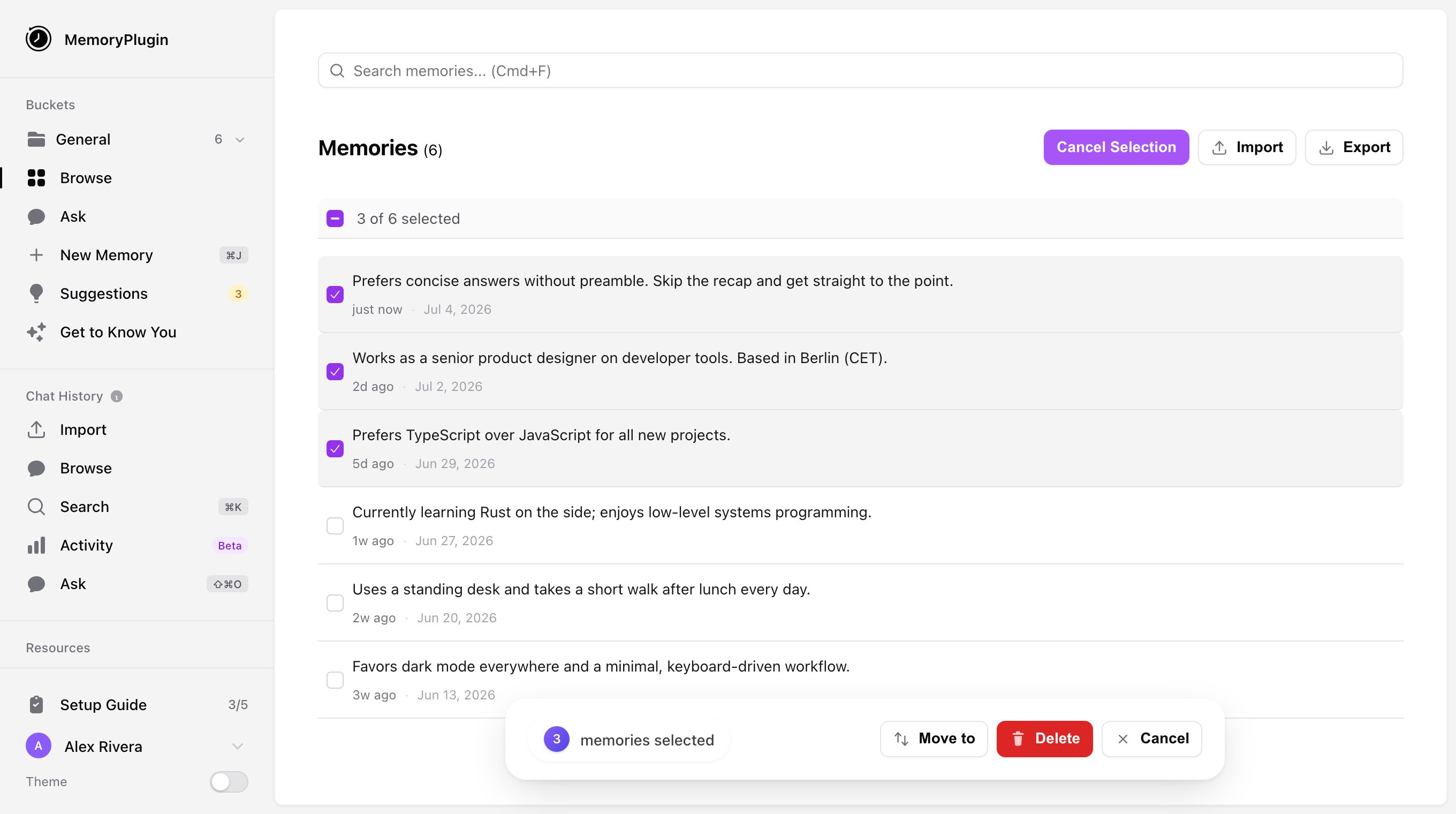
Check the memories you want. The header shows a running count as of selected, and a Select all control selects every memory in the bucket (All selected).
Three memories selected, showing the running count and the bulk actions bar.
Moving memories
1
Open the Move menu
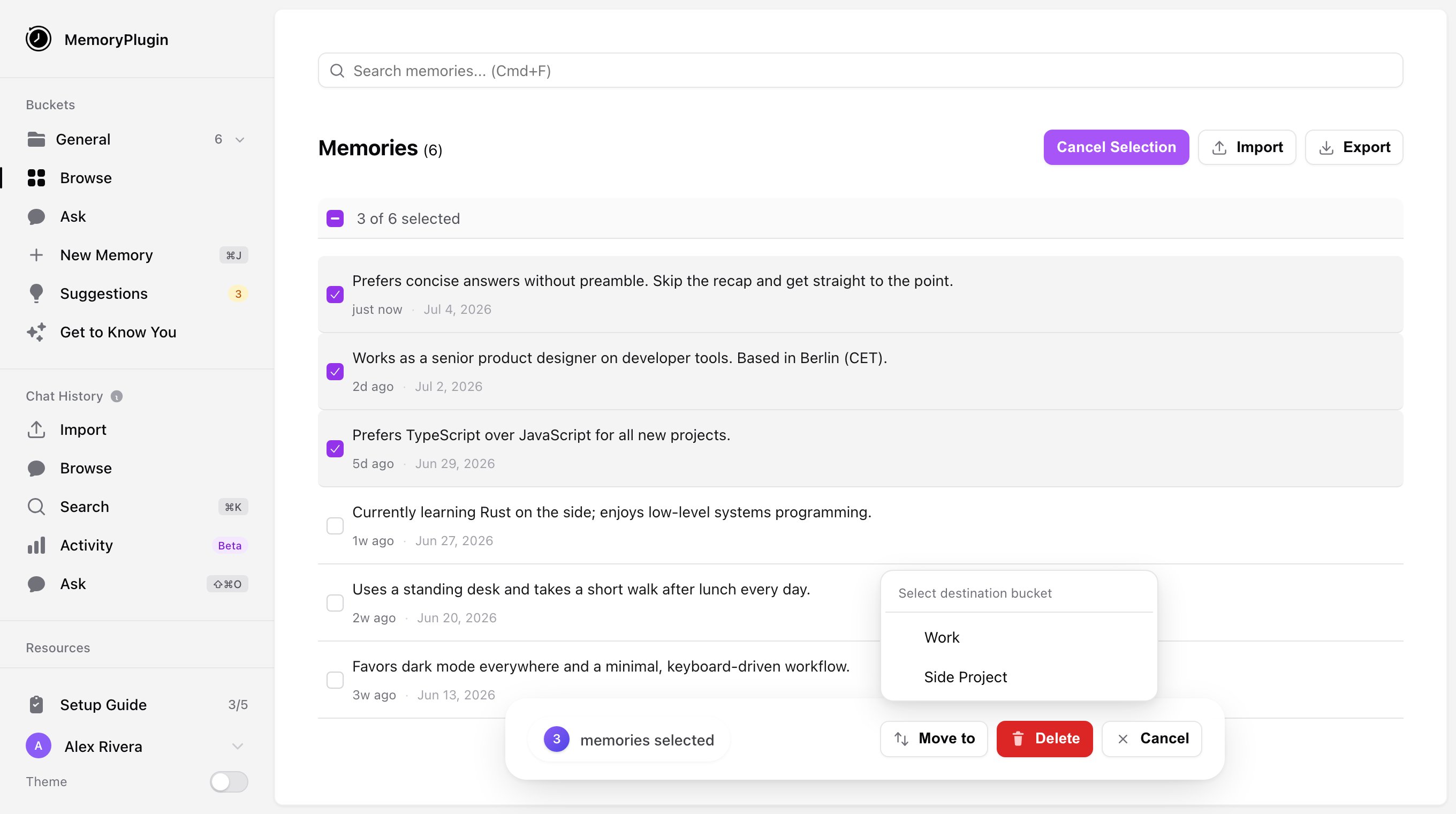
With memories selected, open the Move to dropdown in the bulk actions bar. It is headed Select destination bucket.
The Move to dropdown, headed Select destination bucket.
2
Pick a bucket
Choose the destination. The memories move (the bar shows Moving…), and you get a Memories moved successfully toast.
Moving memories into a bucket that is shared with you asks for confirmation first, since the memories become visible to everyone with access to that bucket.
Deleting memories
1
Click Delete
With memories selected, click Delete in the bulk actions bar.
2
Confirm
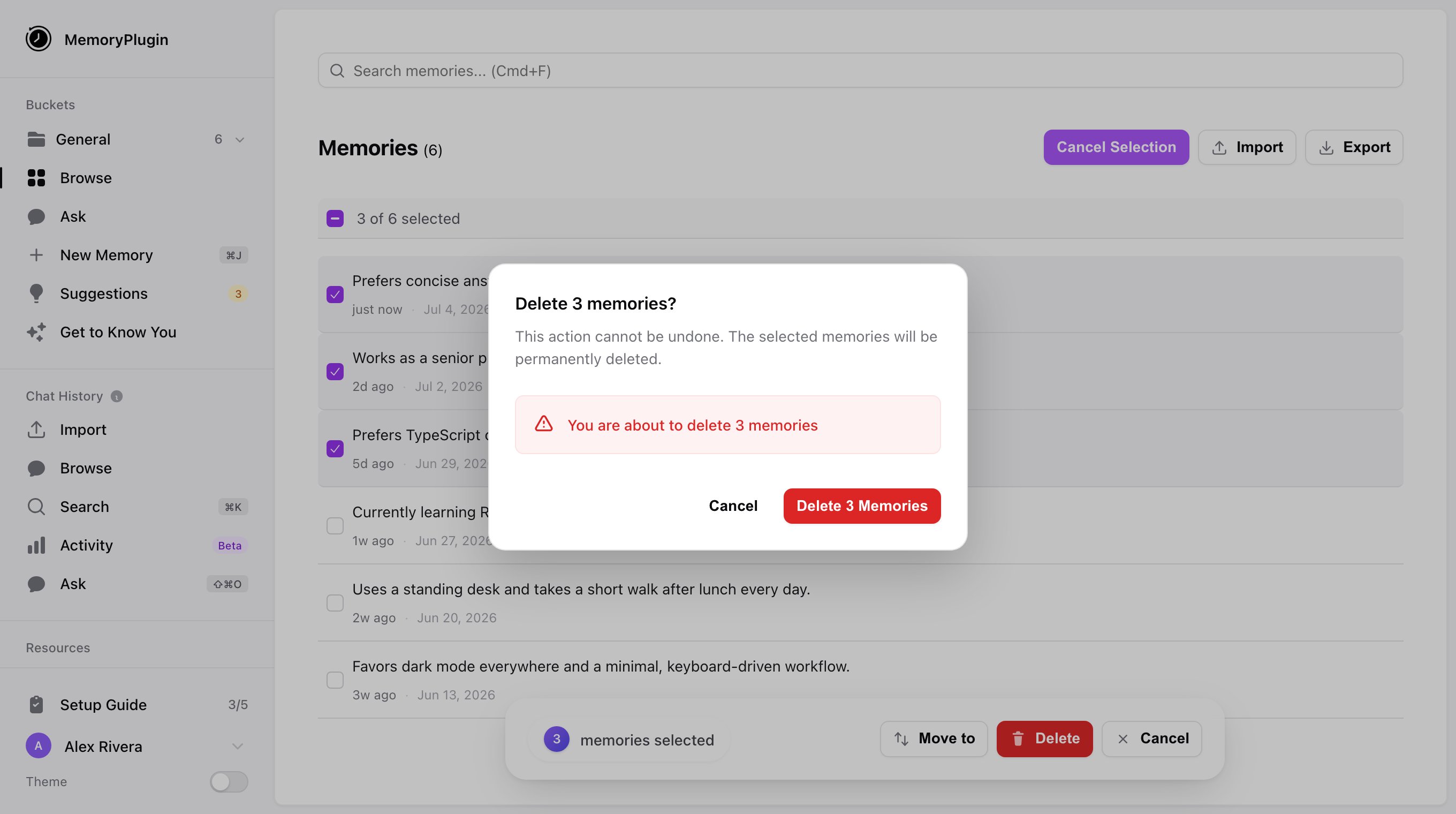
The Delete memories? dialog appears. Confirm with Delete Memories. The bar shows Deleting…, then a Memories deleted successfully toast.
The bulk delete confirmation dialog.
Bulk deletion is permanent and cannot be undone. Check your selection before confirming.
Exporting a selection
While in selection mode you can also export. Once memories are checked, the Export button becomes Export Selected () and opens the export dialog, where you can copy the memories to your clipboard or download them as CSV, JSON, or text. See Import & Export for the details.
Leaving selection mode
Click Cancel Selection to exit without acting on your selection.
Tips
Search or filter first to narrow the list, then select. Easier than scrolling.
Check the bucket you are in before selecting, so you don’t act on the wrong one.
Double-check before deleting. It is permanent.
Bulk operations cover move, delete, and export. There is no bulk editing of memory text; edit memories one at a time from their row.